

JD Edwards EnterpriseOne Search is a standalone application that is deployed within JD Edwards EnterpriseOne as a type of search engine to simplify searches within the system.
This application allows us to search through tables or views for the data that we have entered in our search bar, without the need to browse through multiple applications. From the list that is displayed with the search results, we can access additional data related to the sale or open applications to obtain more information about the searched item.
When would we need to search across multiple applications in EnterpriseOne?
It may be the case that, in order to make a change, we must access different areas of the system. An example would be the withdrawal of a product from the company. Let’s say our company is a manufacturer and has received notice to recall a product for a specific reason. If we had to do it in a conventional way, we would need to know what processes we use this product in (if we sell it, we use it in our manufacturing process, to maintain our equipment, etc.). Doing it this way would involve searching through numerous applications and more time and effort. We would have a search:
- Slow: Due to the different number of applications to be reviewed.
- Complex: We must know all the applications in which we must apply the change.
- Possibility of integrity failures: In case we do not apply the change on all the screens involved.
The JD Edwards EnterpriseOne Search tool will allow us to find the information we are looking for easily, quickly and anywhere in the system. In addition, it will show us all these results on a single screen, which will make the search even easier.
The advantages of performing searches with this tool:
- Faster: By entering a single word, it will show us all the results that the system has found.
- Greater ease: It will show us all the applications in which it finds the information it is looking for.
- More complete: In a single view, it will show us all the applications in which the searched word is found. This will mean a reduction in errors, since we will know all the applications in which the information sought is registered in case a change is needed.
How does it work?
This tool is located in the upper right corner of the JD Edwards EnterpiseOne home screen. In the new search field, we would type the word we were looking for and a list will be displayed with the sections where we can carry out the search:
- Product Application
- Client
- Product
- Address Book
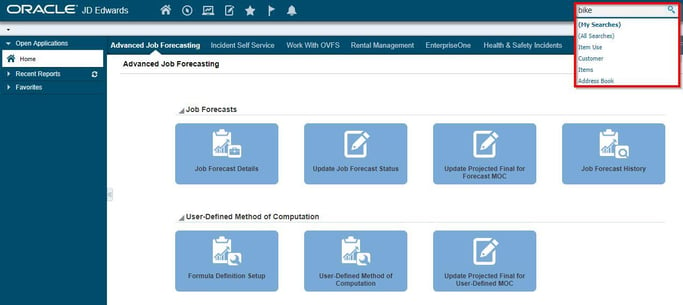
In our example, we’re searching for a product to see which sections it has records in, so we’d select the “product usage” option from the drop-down list. Once inside the query screen, all the records that contain the word we are looking for will appear, divided into 5 sections:
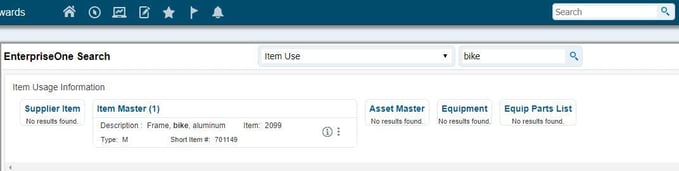
1. Supplier article: Here we will see all the supplier-product relationships in which the product description contains the word we are looking for.
2. Article master: In this section we will see all the products that contain the searched word in the description. Here, next to each record, we have an icon in which we can see all the open transactions that the item in question has, divided into five sections:
- Sales not shipped
- Purchases not received
- Bill of Materials Master
- Work orders, parts lists.
3. Fixed Asset Master: In this section we will find all the assets that contain the word we are looking for in the description.
4. Equipment master: All records in which the product is associated with equipment and contain the word searched for in the description will appear in this column.
5. Equipment Parts Lists: Here we will see all the lists of parts created that contain the word we are looking for in the description.
In summary, this application for JD Edwards EnterpriseOne is:
- Una rápida y potente herramienta de búsqueda que nos permite buscar a través de todos los datos maestros y transaccionales del sistema.Nos permite tomar decisiones rápidas y precisas en base a un completo conjunto de datos.Funciona de manera muy simple, ya que con una simple consulta el sistema nos proporciona todos los datos relevantes sobre nuestra búsqueda.Puede ser fácilmente configurado por desarrolladores.