

In today’s business context, having a clear and accurate view of data is critical for strategic decision-making.
Combine JD Edwards (ERP that offersa wide range of functionalities to effectively manage critical business processes) with Power BI (a stature business intelligence platform), you can obtain valuable and impactful insights that will drive the growth and success of your company.
In this article, we’ll explore how to leverage JD Edwards and Power BI in the Amazon Web Services cloud environment, making use of ETL tools such as AWS Glue and Amazon Athena.
Key steps to exploit JD Edwards with Power BI
1. Using AWS Database Migration Service (DMS) for Daily Data Dump

The critical first step in deploying JD Edwards with Power BI is to establish the connection between JD Edwards and AWS.
With the AWS Database Migration Service (DMS), you can set up a replication task that performs a daily dump of JD Edwards information in real time and uploads it to Amazon S3.
This ensures that your data is always up-to-date and ready for analysis in Power BI.
2. Connecting JD Edwards Data Files on Amazon S3 to AWS Glue

The next step is to establish a connection between the JD Edwards data files stored in Amazon S3 and AWS Glue.
AWS Glue is a fully managed data extraction, transformation, and loading (ETL) service that simplifies and speeds up data preparation and transformation. With AWS Glue, you can extract JD Edwards data files stored in Amazon S3 and adapt them to a format suitable for further analysis in Power BI.
This connection between JD Edwards data files and AWS Glue will ensure smooth and efficient integration of data throughout the analysis and visualization process in Power BI.
3. Create a data catalog with AWS Glue

Once you’ve connected your JD Edwards data with AWS Glue, you can take advantage of the ability of AWS Glue to automatically recognize the structure of your JD Edwards data and build a data catalog.
This data catalog will serve as a centralized repository that will store information about the data available in your organization, thus facilitating its subsequent consultation and analysis.
4. Using Amazon Athena to query your data
Once you’ve created your data catalog using AWS Glue, you can leverage Amazon Athena to query your JD Edwards data.
Amazon Athena is an interactive query service that allows you to analyze large datasets stored in Amazon S3 using standard SQL queries. These standard SQL queries will allow you to extract specific data from JD Edwards and get the results in a format that can be viewed in Power BI.
5. Connect Power BI to Amazon Athena

After you’ve queried your JD Edwards data using Amazon Athena, you’ll be able to establish a connection between Power BI and Amazon Athena to visualize and analyze your data interactively.
Power BI has native connectivity to Amazon Athena, allowing you to directly import your queried data into Power BI and start creating custom reports and dashboards.
6. Creating reports and dashboards in Power BI
Once you have your JD Edwards data in Power BI, you can start creating custom reports and dashboards. Power BI offers a wide variety of visualization and analysis tools to better understand and analyze your data.
You’ll be able to select key metrics, such as revenue, costs, inventory, and other KPIs relevant to your business, and use Power BI’s data modeling capabilities to perform in-depth analysis.
Benefits of connecting JD Edwards to Power BI with AWS
By connecting JD Edwards to Power BI using AWS ETL tools, you’ll be able to get a clearer and more complete view of your data, giving you a more detailed understanding of your business. Combining these tools will allow you to connect, transform, query, and visualize your JD Edwards data efficiently and effectively.
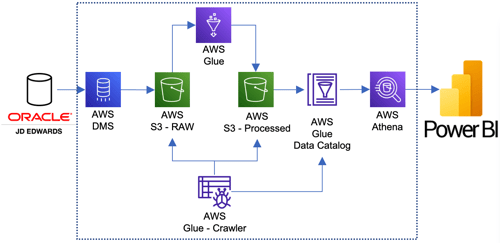
Take advantage of the benefits offered by the AWS Cloud, such as scalability and security, to ensure fast and reliable access to your data. Drive your business growth and success by leveraging JD Edwards through Power BI with AWS!