

Among the many features available in version 9.2 of JD Edwards EnterpriseOne Mobile Applications, one that offers particular value is the ability to check stock availability, which can be done from a smartphone or tablet.
To be more precise, the Inventory Availability app (ERP inventory) allows you to view inventory information – including the item, batch/serial number, location, unit of measure and quantity – all from a mobile device.
It should be borne in mind that the purpose of these applications is to simplify the information contained in the EnterpriseOne software versions and, therefore, they aim to highlight the most important aspects of that application and make them available to the user. Consequently, not all the information available in the core software is available in the mobile applications.
Features of the JD Edwards 9.2 Inventory Availability application
The main benefit of checking stock availability is to determine current and future stock requirements. By using the application, you can access the following information:
- Review of information relating to items, such as the batch/serial number, their location in the warehouse and the relevant unit of measurement.
- Access to a summary of information on items held, on order and in stock.
- Access to and monitoring of stock supply and demand, which can help with planning future warehouse requirements.
What types of quantity calculations does the system take into account when determining availability?
The application features the following types:
| On-hand | This shows the total number of items at a particular site or branch. |
| Commitments | This includes both firm and non-firm commitments, as well as quantities in production orders. |
| On receipt | Displays quantities contained in open purchase orders. |
| Avalaible | This defines how the system calculates availability. As a general rule, it takes into account the available units and subtracts any outstanding commitments, reservations and outstanding orders. |
Configuration: Inventory Availability for Mobile Applications
Before the end user can start using the Inventory Availability smartphone or tablet app, the processing options must be configured to specify the default information for the programmes used in both services, all within the EnterpriseOne system. In addition, the processing preferences for the inventory availability mobile apps must also be set.
Another feature available with the latest update is that, depending on whether Bluetooth is enabled or disabled on the mobile device, the item information is read in a different way. If Bluetooth is switched off, you can use the mobile device’s built-in camera to scan barcodes for the item number, location and batch/serial number. However, Bluetooth must be switched on if you wish to use a Bluetooth barcode scanner, provided it is set up on the mobile device.
How do I use the app?
The Inventory Availability app is available for both tablets and smartphones and allows you to check stock availability details for each item based on the item number and the branch or site.
Below is an illustration of how the app would work on a smartphone.
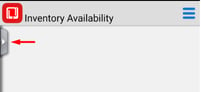
As soon as you enter the page, click on the tab on the left to display the panel containing the search button. This is where you will need to filter your search using two criteria – the plant/branch and the item number – before carrying out the search:
These filter settings are automatically saved and the following table is displayed:
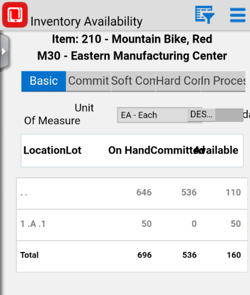
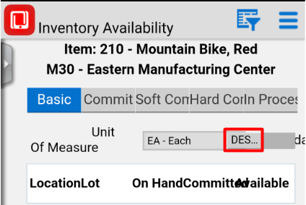
This is when the main unit of measurement for the item is displayed, along with its location and batch number within the plant/branch, the quantity held in stock, the quantity on allocation, and, finally, the quantity available once the allocated quantity has been deducted from the stock on hand. If you wish to filter by a second unit of measurement, you would need to click on the disabled button:
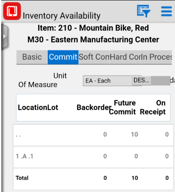
As well as showing the item’s availability alongside basic information, it has other filters to display the units that have been committed – both under flexible and firm commitments – and those that are in progress:
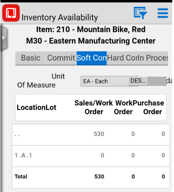
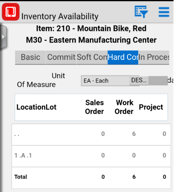
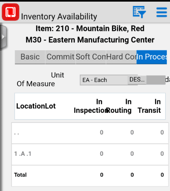
If you wish to carry out a more specific search, click on the filter button in the top right-hand corner: you can filter records by location, a batch/serial number range and the batch/serial status code. The available batch status codes include the following:
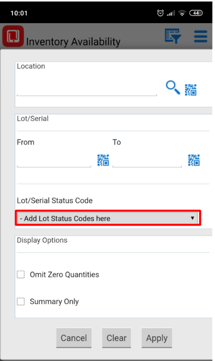
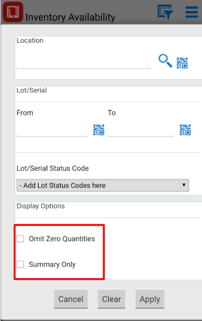
With the latest update, please note that there are three different ways to enter search criteria:
1. The keyboard on a mobile device for manually entering data.
2. The camera app on a mobile device for scanning data. To use this option, tap the QR code button next to the location and the batch/serial number field. The system will launch the device’s camera, allowing you to scan the barcode for the location and the batch/serial number.
3. A Bluetooth-enabled scanning device for scanning data. To use this option, tap the location and the batch/serial number field to activate the scanner. Then, scan the barcode for the location and the batch/serial number using the scanner.
If you would like to request a DEMO or find out about any of the other 80-plus JD Edwards mobile apps, please get in touch with us.